Using M4U Remoting
Overview
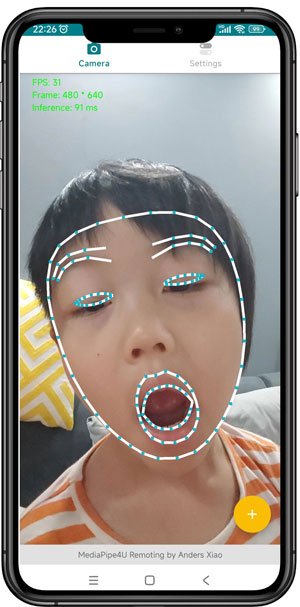
MediaPipe4U Remotingis an Android app that extends MediaPipe4U capture to mobile devices (currently Android only). It is still evolving and currently supports facial-expression capture only.MediaPipe4U Remotingruns Google MediaPipe solvers on the mobile device and sends the solved data to Unreal Engine, where MediaPipe4U performs subsequent processing such as driving a 3D character.
Tip
MediaPipe4U Remoting is open source. Download its source code here:
https://github.com/endink/M4URemoting-Android
Windows Firewall Settings
Your firewall may prevent the phone from accessing the host port (22345 by default). Save the following content as a BAT file and execute it to allow the port through the firewall.
netsh advfirewall firewall add rule name="Port22345" dir=in action=allow protocol=UDP localport=22345
Tip
Run the saved BAT file as administrator by right-clicking it and selecting "Run as administrator".
Facial-Expression Capture
The MediaPipe4ULiveLink plugin includes a Face Solution named Remoting. It receives expression data captured by the MediaPipe4U Remoting app and sends it to a Live Link receiver, usually a LiveLinkPose Animation Blueprint node, through the Live Link protocol.
Mobile facial-expression capture removes cable constraints. Because mobile MediaPipe supports GPU inference and runs only one expression solver, it usually achieves a higher solving frame rate than a Windows camera.
Android facial-expression capture has been measured at 30 FPS.
Tip
This document assumes that you already know how to use MediaPipe4U for facial-expression capture and understand these concepts:
- Face Solution
- Face Link Actor
If not, first read Using Facial-Expression Capture.
Usage:
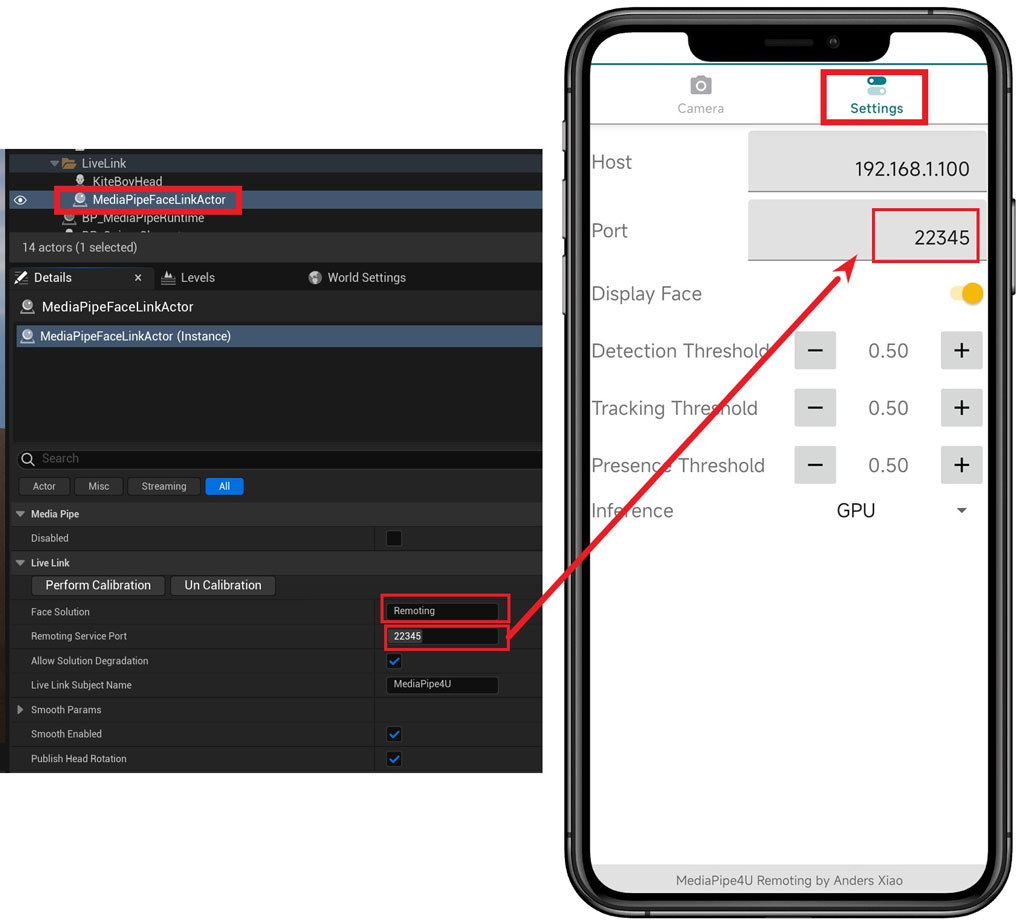
- Start the Remoting app on the phone and enter the correct host IP address in
Settings. - Configure MediaPipe4U facial-expression capture.
- Set the
Face Solutionof theFace Link Actorto "Remoting". - Run the Unreal Engine project that uses MediaPipe4U.
By default, MediaPipe4U listens for packets from the Remoting app on port 22345. You can change the port, but the mobile app must use the same port setting.
Mobile Calibration Command
The Remoting app can remotely control MediaPipe4U. Tap the + button on the main screen to send a calibration instruction from the Android device and make MediaPipe4U perform calibration.
Settings
M4U Remoting generally works out of the box with zero configuration, but provides a few settings:
| Setting | Description |
|---|---|
| Host | IP address of the host running MediaPipe4U. |
| Port | Communication port exposed by the host running MediaPipe4U. |
| Display Face | For privacy, use this switch to hide or show the camera image. |
| Detection Threshold | Face-detection threshold. Higher values impose stricter requirements for face clarity, occlusion, and other conditions. |
| Tacking Threshold | Continuous face-tracking threshold. Reusing data from the previous frame, such as face position, improves video-stream efficiency. Higher values require greater confidence in the previous frame. |
| Present Threshold | Face-landmark confidence threshold. After landmarks are detected, confidence is evaluated for each region. Expression solving fails for a region below this threshold. |
| Inference | AI inference method. GPU-accelerated inference is preferred; switch to CPU inference if GPU inference causes problems. |