Custom Skeletons
MediaPipe4U provides the following skeleton presets, which can begin motion capture without manual mapping:
- UE5: The UE5 Mannequin skeleton, also compatible with the UE4 Mannequin and Metahuman
- VRoid (VRM): VRM model skeletons created with VRoid Studio
- CharacterCreator: Standard CharacterCreator 3/4 character skeletons
- Daz: Standard Daz character skeletons
If your skeleton is not one of the presets, this section explains how to map any skeleton.
Before reading this section, read Quick Start. This section assumes that you have configured the Animation Blueprint nodes by following Prepare the Motion-Capture Character.
Create a MediaPipe Remap Asset
Right-click any folder in the Content Browser ---> MediaPipe4U --> MediaPipe Remap
You can also click the Add button in the upper-left corner of the Content Browser to open the New Asset menu.

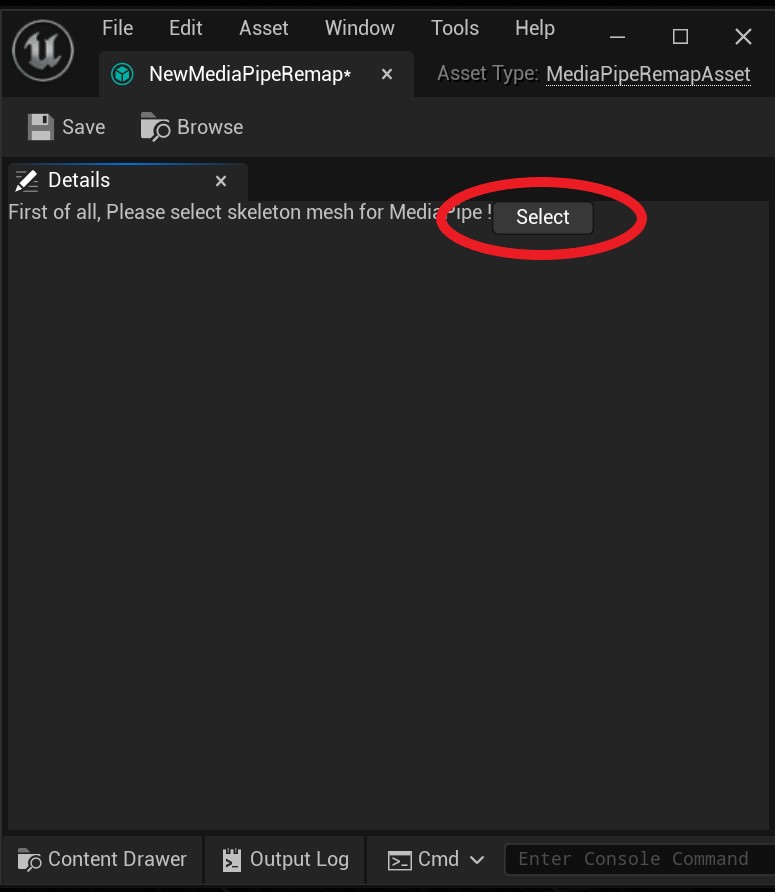
This creates a RemapAsset. Double-click it to open an empty editor window. Because remap assets are bound to skeletal meshes, first specify the skeletal mesh that MediaPipe4U will drive: click Select and choose a skeletal mesh.
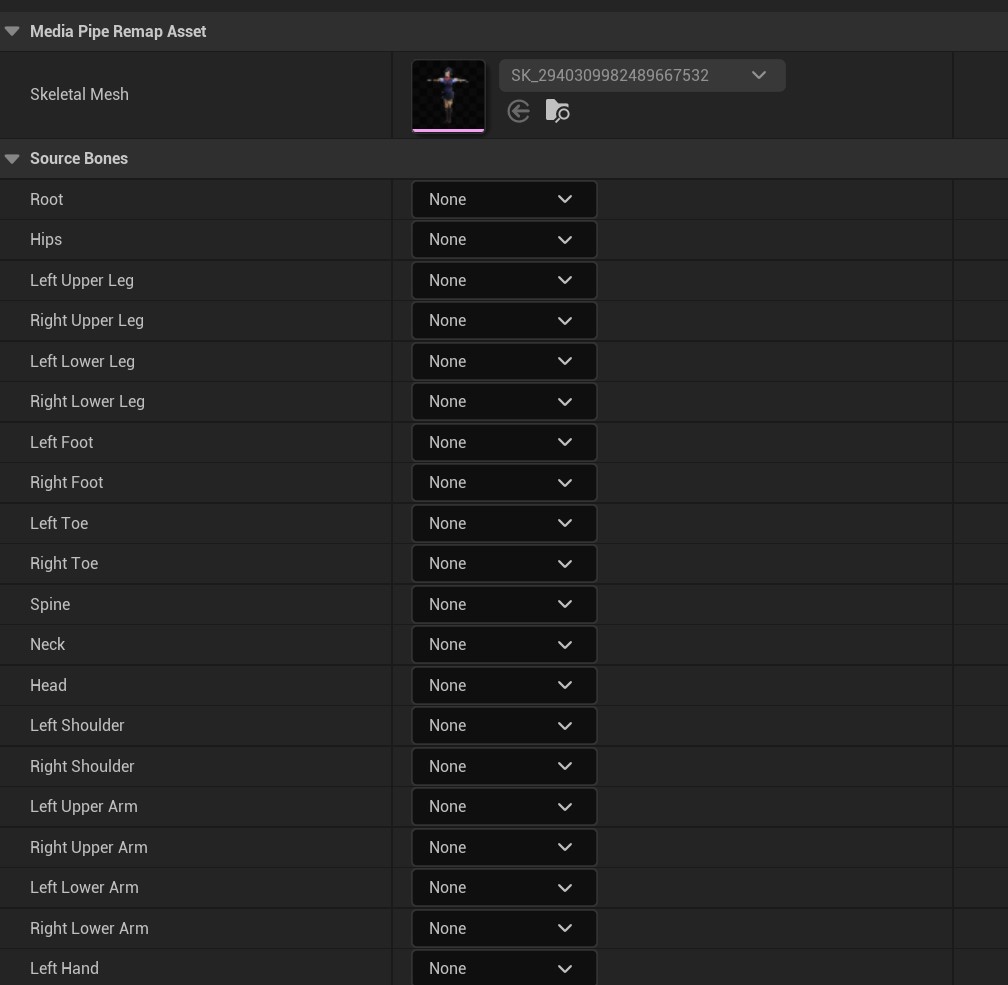
After selecting a skeleton, the editor displays the bone-binding list. Map the bones required by MediaPipe4U to bones in your skeletal mesh.
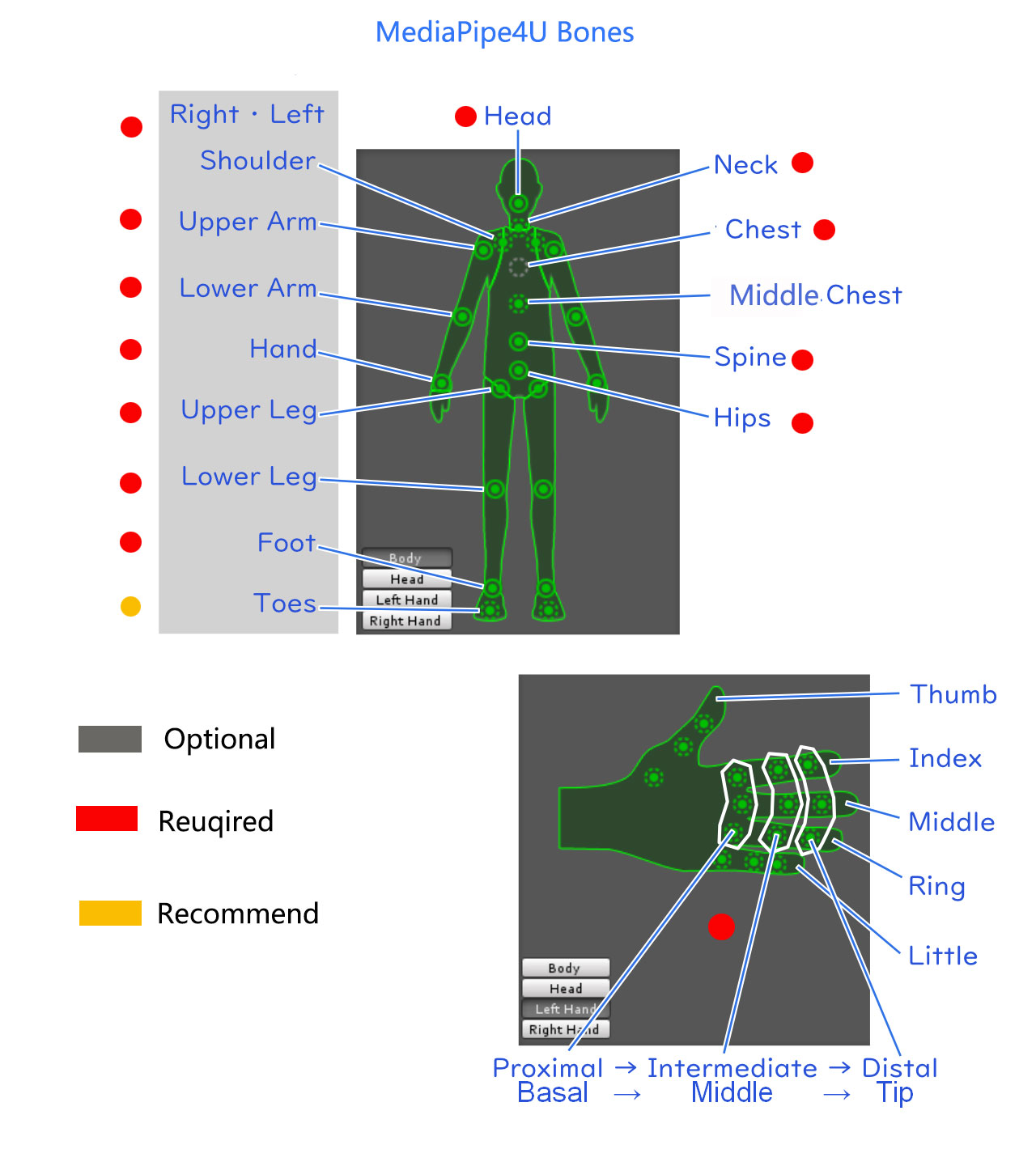
The following image shows the reference bone positions:
Save the asset after completing the bone mapping. You now have a bone-remapping table that MediaPipe4U can drive.
Configure Mapping in the Animation Blueprint
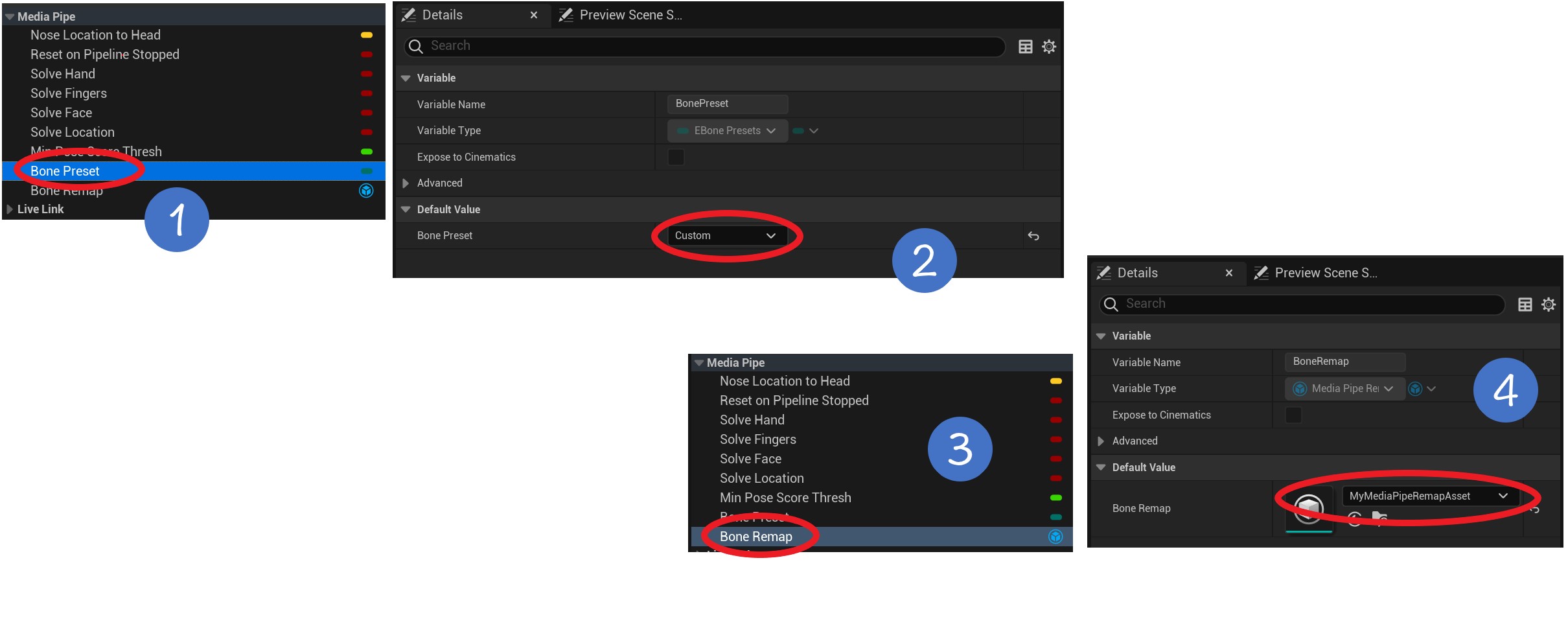
Configure the remap asset in the Animation Blueprint as follows:
1. Set the Animation Blueprint variable BonePreset to Custom.
2. Set the Animation Blueprint variable BoneRemap to the MediaPipe remap asset you created.
The Animation Blueprint must inherit from
MediaPipeAnimInstance, and inherited variables must be visible. See Prepare the Motion-Capture Character.
Save and compile the Animation Blueprint to begin MediaPipe motion capture.
 Notes
Your arms (Arm) and legs (Leg) should use three-section bone chains. Otherwise, the plugin's twist correction and IK features (ArmIK and LegIK on the PoseSolver Animation Blueprint node) may not work correctly.
Using an arm as an example:
Correct arm-bone hierarchy:
LeftUpperArm - LeftLowerArm - LeftHand
orLeftUpperArm - LeftLowerArm2 - LeftHand
 Incorrect arm-bone hierarchy:
LeftUpperArm - LeftLowerArm1 - LeftLowerArm2 - LeftHand