Switch Animation Blueprints at Runtime
For various reasons, you may need to change the Animation Blueprint on a skeletal mesh after the program is running.
Tip
If you need this because the Animation Blueprint base class cannot use MediaPipeAnimInstance, do not use the approach described in this document. Instead, consider Unreal Engine's Animation Blueprint Linking solution.
For Animation Blueprint Linking, see the following documentation:
https://dev.epicgames.com/documentation/unreal-engine/animation-blueprint-linking-in-unreal-engine
Key Function
In either Blueprint or C++, you can change a skeletal mesh's Animation Blueprint by setting the SetAnimInstanceClass function of USkeletalMeshComponent.
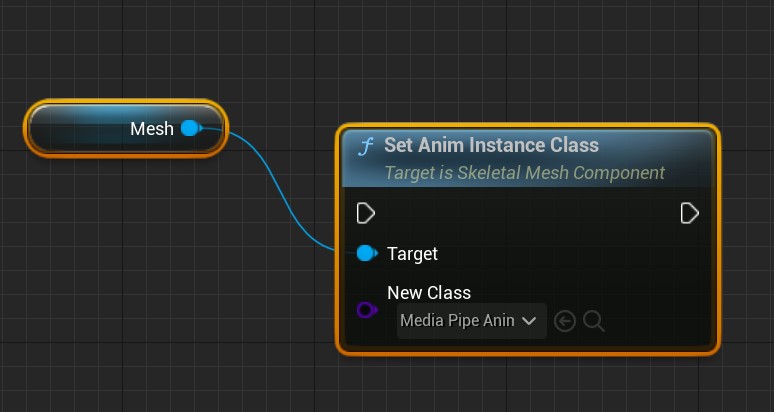
Switch to a MediaPipe Animation Blueprint
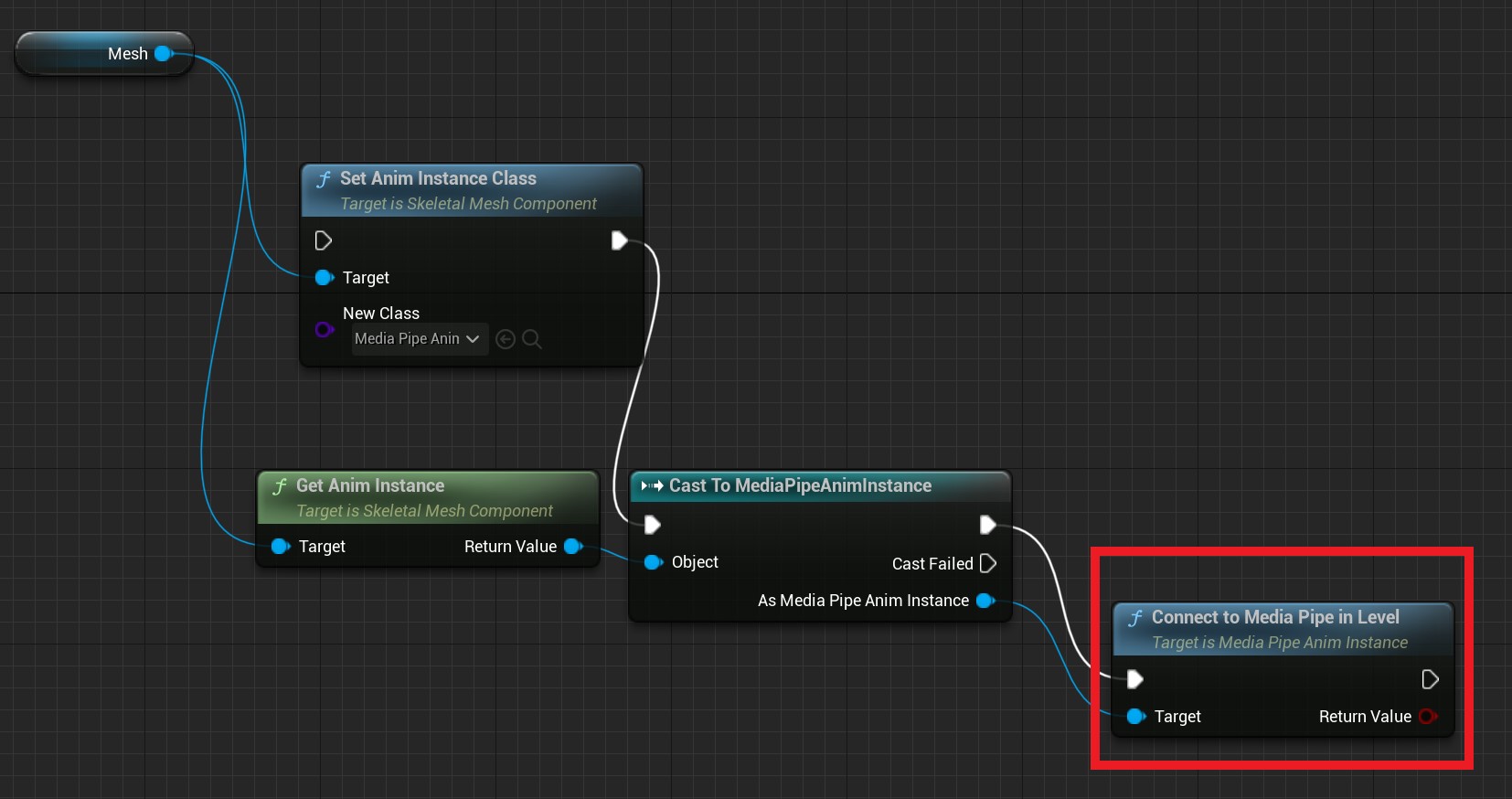
When switching to a MediaPipeAnimInstace Blueprint, you must also connect the Animation Blueprint to MediaPipe.
Use the ConnectToMediaPipeInLevel function of MediaPipeAnimInstace to complete this process:
Note:
ConnectToMediaPipeInLevelreturns a bool indicating whether connecting to MediaPipe succeeded.
USkeletalMeshComponent* Mesh = XXXX;
UClass* AnimInstanceClass = UMediaPipeAnimInstance::StaticClass(); //This should be your Blueprint class
Mesh->SetAnimInstanceClass(AnimInstanceClass);
UAnimInstance* AnimInstance = Mesh->GetAnimInstance();
if(UMediaPipeAnimInstance* MediaPipeAnimInstance = Cast<UMediaPipeAnimInstance>(AnimInstance))
{
    if(MediaPipeAnimInstance->ConnectToMediaPipeInLevel())
    {
        // switch ok
    }
    else
    {
        // switch fault
    }
}