Quick Start
MediaPipe4U provides offline, real-time speech synthesis and recognition, giving 3D characters the ability to "listen" and "speak".
Install Model Packages
Before using the speech suite, download and install a speech model package.
Find the model for your language at https://huggingface.co/endink/M4U-Speech-Models.
For details, read Installing Speech Models.
Use MediaPipeSpeechActor
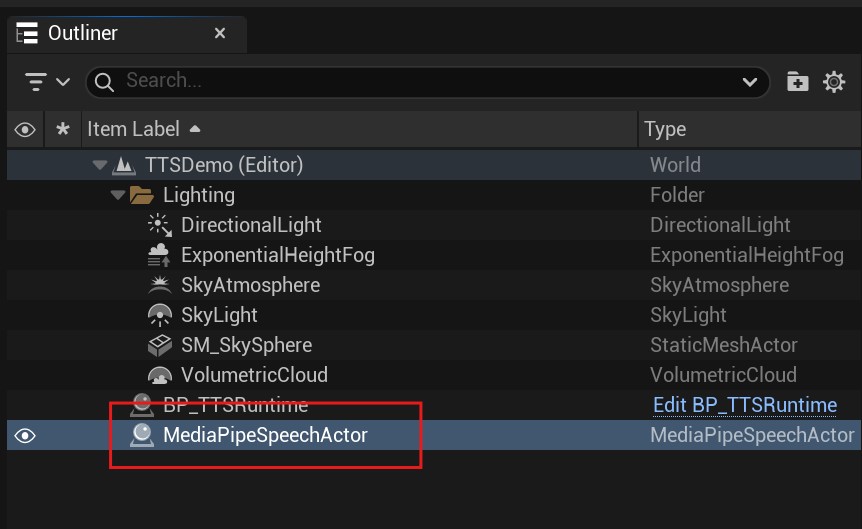
Add a MediaPipeSpeechActor to the scene.
Speech Synthesis (TTS)
Start Reading Text
Use SpeakTextAsync on MediaPipeSpeechActor in Blueprint to read text aloud.
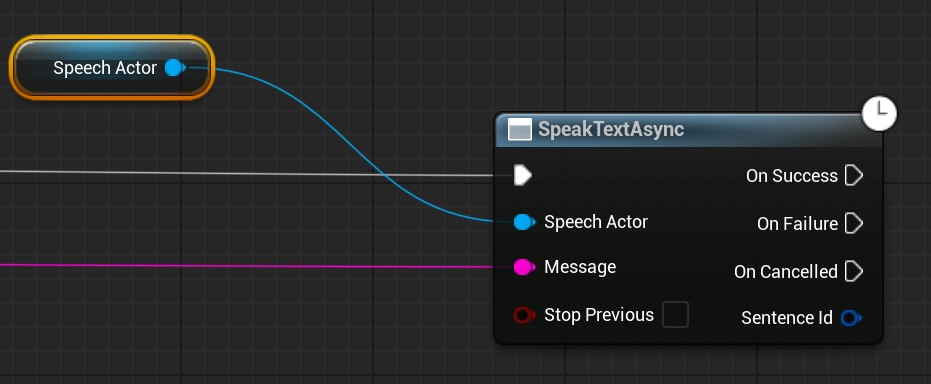
Message is the text to read.
Stop Reading Text
Use StopSpeakAsync on MediaPipeSpeechActor to stop reading.

Speech Recognition (ASR)
Convert input speech to text in a few steps:
- Bind the recognition event to receive recognized text.
- Start speech recognition in Blueprint.
Tip
Stop speech recognition when it is no longer needed.
Bind the Speech-Recognition Event
Bind OnTextRecognized on MediaPipeSpeechActor to receive ASR text in the event callback.
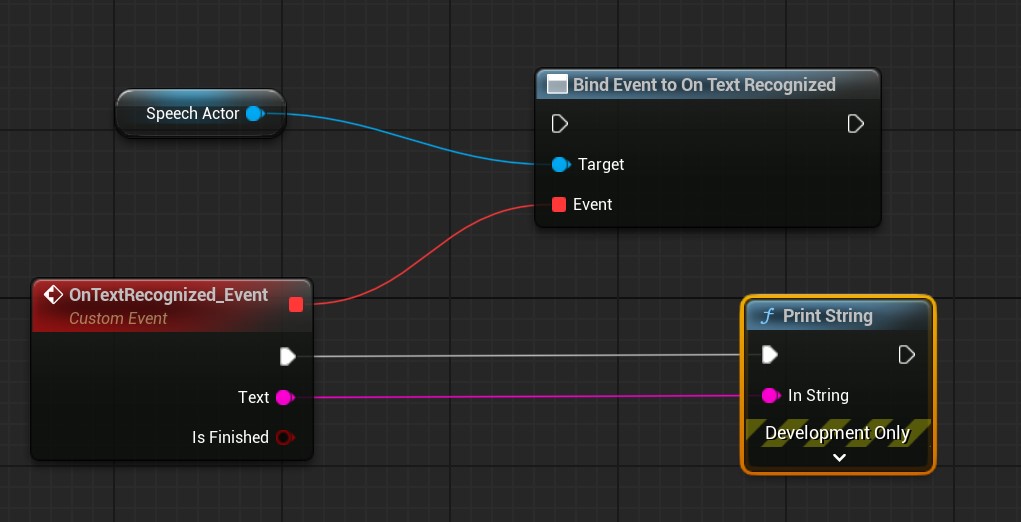
The event's Text parameter contains the recognized text.
Start Speech Recognition
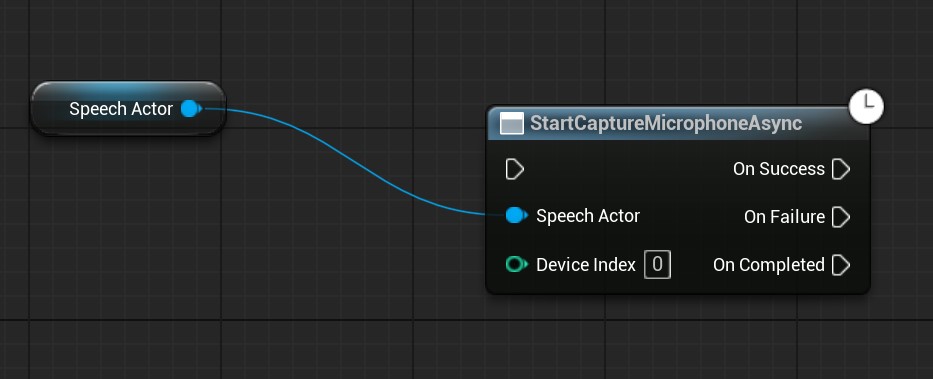
Call StartCaptureMicrophoneAsync on MediaPipeSpeechActor to capture audio from the default input device (microphone) and recognize it as text.
Tip
If speech is not recognized and the log contains no error, verify that the operating system's default audio-input device is your microphone. MediaPipe4U Speech automatically uses the default input device.
Stop Speech Recognition
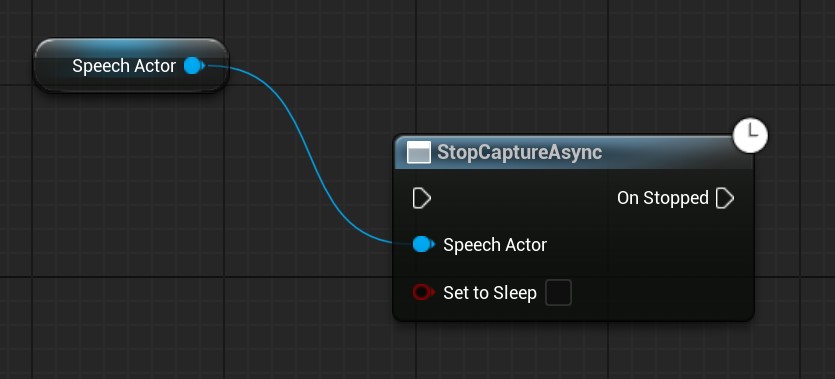
Call StopCaptureAsync on MediaPipeSpeechActor to stop capturing audio.
Lip Sync
Synchronize a 3D character's mouth with spoken text in a few steps:
- Prepare animation assets
- Add Animation Blueprint nodes
- Enable lip sync
- Create a
Characterand assign it toLipSyncCharacteronMediaPipeSpeechActor - Start reading
The steps are described below.
Prepare Animation Assets
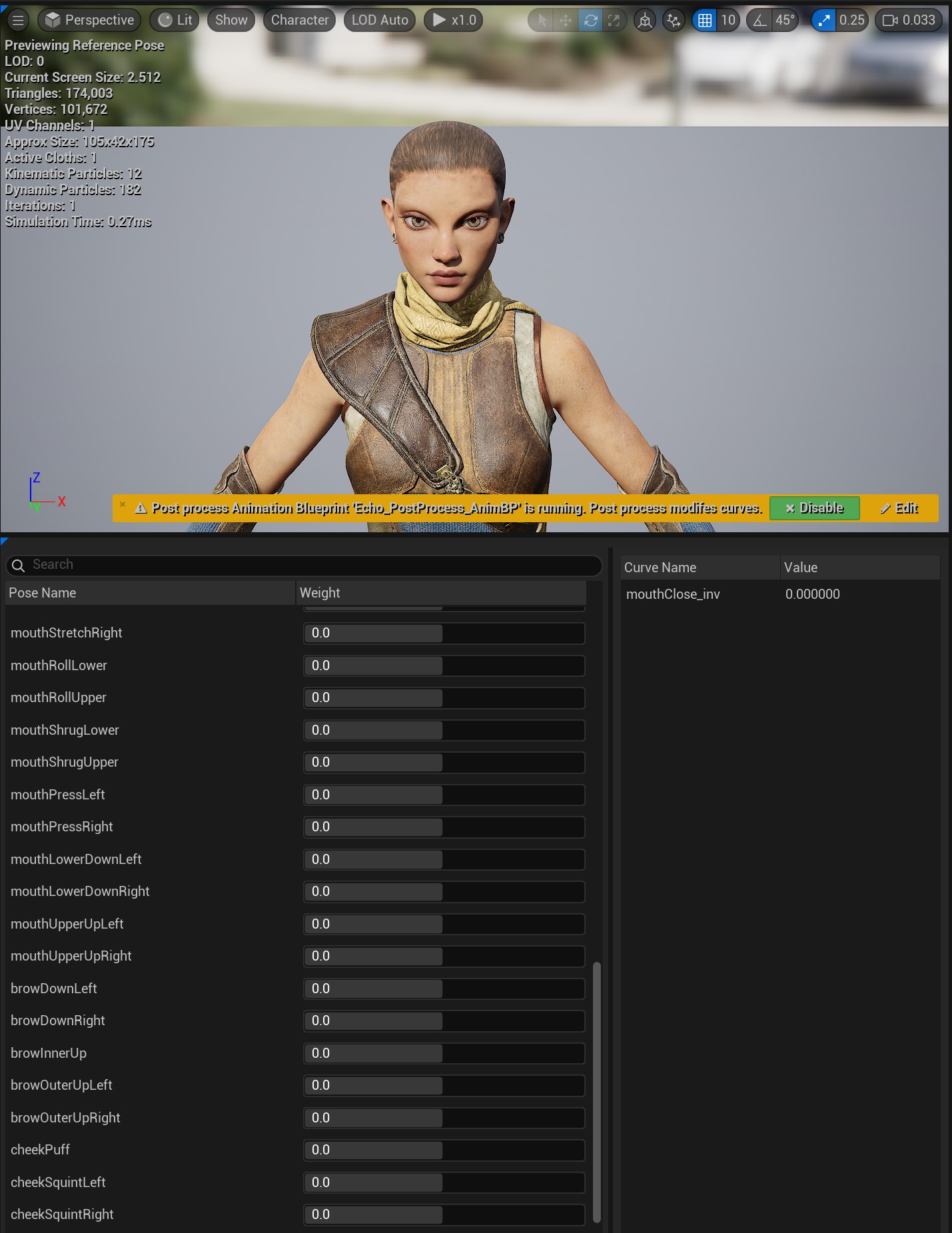
Create a PoseAsset compatible with the ARKit Blend Shape standard, containing 52 case-insensitively named curves.
Add Animation Blueprint Nodes
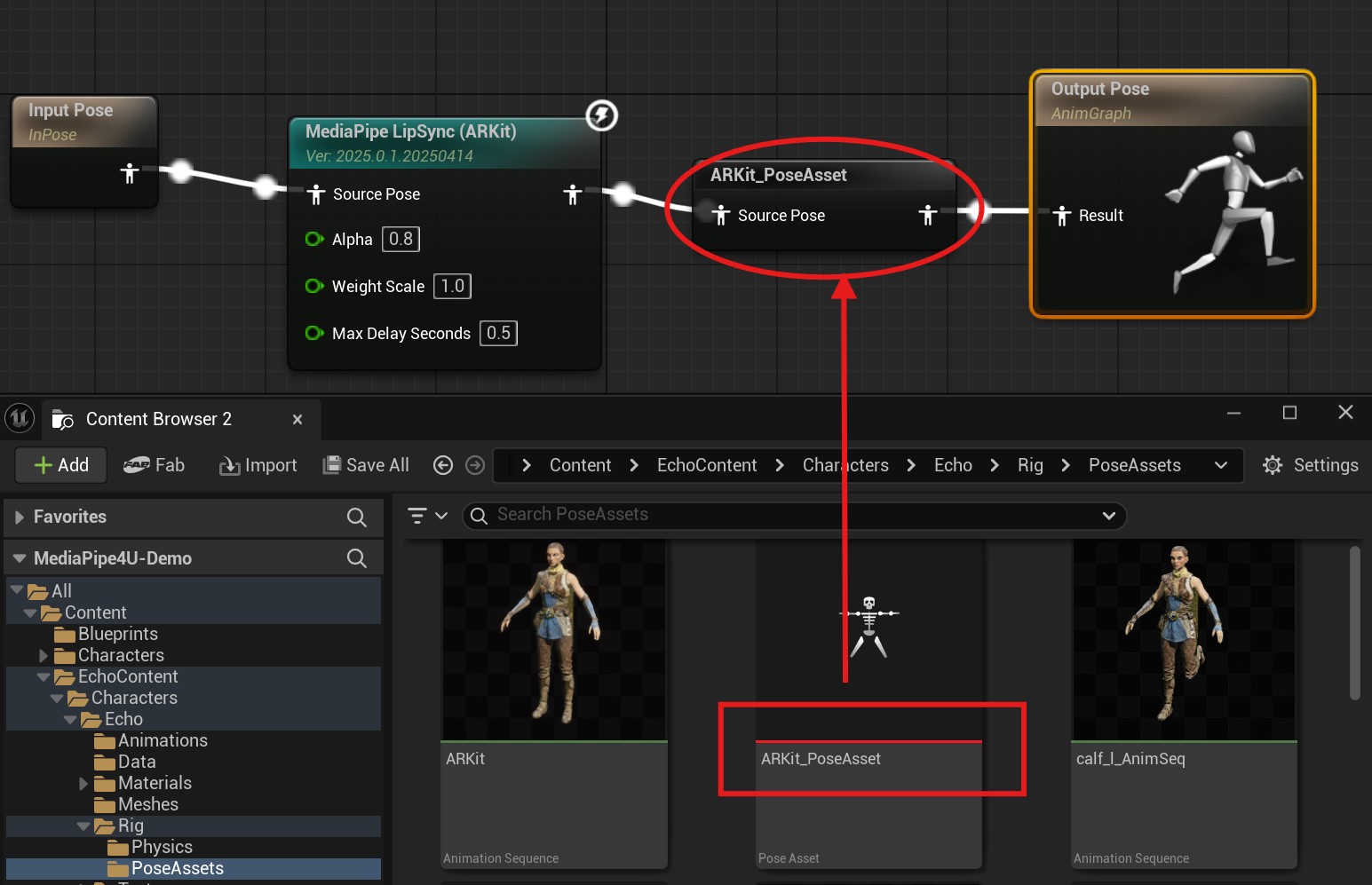
Add MediaPipe LipSync and Evaluate Pose nodes to the Animation Blueprint.
Create a Character
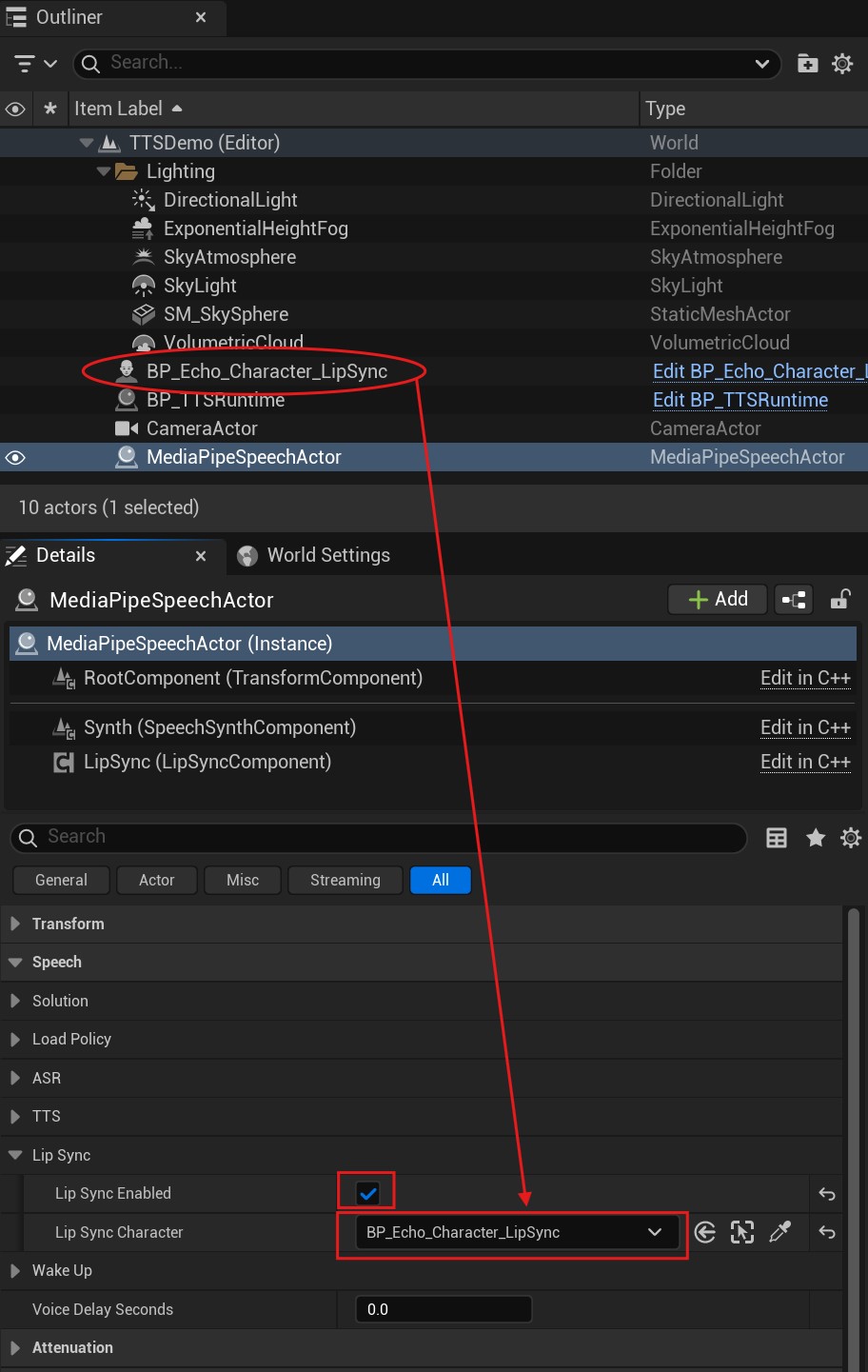
- Create a
Characterand assign an Animation Blueprint containingMediaPipe LipSyncto itsMesh. - Place the
Characterin the Level. - Set
LipSyncCharacteronMediaPipeSpeechActorto thisCharacter. - Verify that
LipSyncis enabled onMediaPipeSpeechActor.
Start Reading
When SpeakTextAsync on MediaPipeSpeechActor is called, it reads the text and generates matching lip animation on the Character.